2026/27 YYG Taxi Licenses
REMINDER: Airport licenses and numbers are assigned to the individual drivers, not the vehicle or the stand.
To receive your 2026/27 airport license you are required to:
- Attend an in person airport training session - only if you are a new driver this year;
- Have a valid Class 2 or 4 drivers license;
- Complete Canadian Airports Accessibility Training every 3 years; and
- Complete a YYG 2026/27 License Form.
Once all required items are complete you can receive your airport license sticker and identification card.
PLEASE NOTE: Licensing will ONLY be available Tuesday, May 26th from 1:30 to 3:30 PM and Wednesday, May 27th from 9:00 to 11:30 AM in the new Airport Authority office. The new office is on the second level of the new expansion to the building.
You will need to have the following on hand when you apply for your airport license:
- Proof of completion of the Canadian Airports Accessibility Training (if not submitted already within last 3 years);
- A completed copy of the YYG 2026/27 License Form which have been provided to your stand drivers to print; and
- Provincial drivers license.
In Person Training Sessions - New Drivers
New drivers who did not receive a 2025/26 airport license are required to attend an in person training session prior to receiving their 2026/27 license. Training sessions have been scheduled for:
May 26th, 2026 @ 1:00 PM
June 9th, 2026 @ 11:00 AM
September 10th, 2026 @ 2:00 PM
December 1st, 2026 @ 11:00 AM
March 11th, 2027 @ 2:00 PM
IMPORTANT: Moving forward new driver training will only be done quarterly as per the dates above. We will not be doing adhoc training outside of these dates for new drivers.
To sign up please reach out at asmith@flyYYG.com
Enforcement
Violations listed below will be enforced by the Airport Authority management with assistance from Security Personal, all airport authority staff, and passengers:
- Charging passengers fares above approved airport rates
- Failing to provide a receipt to passengers
- Driving in a speeding, reckless, or unsafe manner
- Engaging in verbal abuse or harassment
- Bypassing the taxi queue ahead of drivers waiting in the overflow lot
- Refusing to accept approved forms of payment (credit and debit)
- Parking in unauthorized areas (e.g., Maple Hills Ave, Departures area)
- Operating a vehicle that does not meet Airport Terms and Conditions
- Declining the next available fare while in the taxi line
- Accepting multiple fares while other taxis are waiting in line
- Failing to display the current (2026/27) Taxi Sticker on the lower passenger side corner of the windshield
- Failing to present a valid YYG Taxi License Identification card upon request
- Leaving a vehicle unattended in the taxi line and leaving airport property
- Smoking outside of designated smoking area on airport property
- Failing to provide required documentation when requested by Security (e.g., license sticker/card, driver’s license, registration)
- Leaving a vehicle unattended in the designated taxi overflow area (Ground Search & Rescue)
- Loitering within the Airport Terminal Building (ATB)
- Allowing another individual to use your YYG Taxi License sticker or identification card
- Operating a vehicle without clearly visible company identification as required
- Operating under an airport taxi license while not dispatched or operating from an authorized taxi stand
- Changing operating stand and not notifying the Airport Authority
- Coming up to the YYG offices to dispute enforcement without going through the proper procedure with the stand owner
If this list requires any additions/subtractions, details will be sent via BAMtext to all taxi drivers and via email to all stand owners.
The enforcement process will vary depending on the severity of the violation(s) and the Airport Authority can choose to expedite the enforcement process as required. Enforcement will range from a verbal warning to the taxi driver and the stand for first violation, depending on severity, to taxi licenses being suspended or revoked.
How to Complete Canadian Airports Accessibility Training
New and Returning Drivers please follow these instructions to complete this training (required every 3 years):
Desktop Users
Step 1
Sign up to take the course using the link in the comments. *Ensure you are directly hitting this link, not typing it in your web browser.
https://copa.myabsorb.ca?KeyName=CACTraining
Step 2
Sign up for a new account.
- Create your own password.
- When you login your username is the e-mail address you entered.
- Only fill in lines that are "required".
- Select sign up.

Step 3
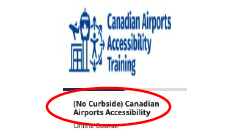
From the course library, select (No Curbside) Canadian Airports Accessibility Training.
- All employees and transportation providers (except Security Personnel) select the “No Curbside” module.
Step 4
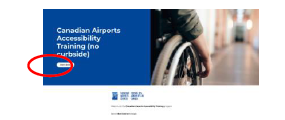
Start the training.
- Ensure pop-up blocker is disabled, otherwise the course will not open
Step 5
Complete the training.
- You will not have the ability to skip through the training, you must review each module prior to completing the final quiz.
- 80% or more is required to pass the quiz, if you do not receive this on the first attempt you can go back and review the training content and attempt the quiz again.
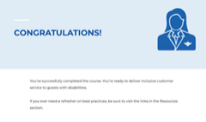
- Once the final quiz is complete with a score of 80% or more, you will see the following prompt.
- If you are completing the course over multiple days, ensure you completely exit the training module and are logged into your account before resuming the training. If you don’t do this, your progress may be lost.
Step 6
Exit Course
- Select “EXIT COURSE” at the top right-hand corner of the screen.
Step 7
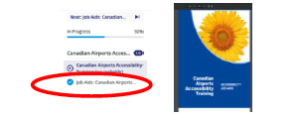
In addition to completing the quiz, you must review the "Job Aids".
- Go back to the original tab in your browser and click “Job Aids: Canadian Airports…”, which is on the right side of the screen, and a PDF will open for your review.
Step 8
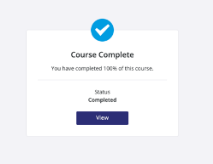
Exit the “Job Aids” PDF tab to go back to your training page. Training is complete.
- You should see “Course Complete” on your screen.
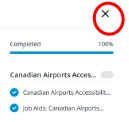
Step 9
Exit training by hitting the “X” in the top right corner of the training screen.
Step 10
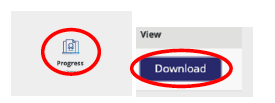
Download certificate and e-mail to asmith@flyYYG.com.
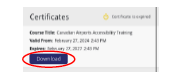
- From the welcome screen, scroll down to "Progress- View Transcript" and hit “Download”, a PDF of your certificate should open in a new tab.
- Save the PDF to your computer and send it to asmith@flyYYG.com.
Mobile Users
Step 1
Sign up to take the course using the link in the comments. *Ensure you are directly hitting this link, not typing it in your web browser.
https://copa.myabsorb.ca?KeyName=CACTraining
Step 2
Sign up for a new account.
- Create your own password.
- When you login your username is the e-mail address you entered.
- Only fill in lines that are "required".
- Select sign-up at the bottom of the page.
Step 3
From the course library, select (No Curbside) Canadian Airports Accessibility Training.
- All employees and transportation providers (except Security Personnel) select the “No Curbside” module.
Step 4
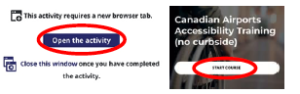
Once the new page opens, select "Open the Activity".
- Ensure pop-up blocker is disabled, otherwise the course will not open
Step 5
Complete the training.
- You will not have the ability to skip through the training, you must review each module prior to completing the final quiz.
- 80% or more is required to pass the quiz, if you do not receive this on the first attempt you can go back and review the training content and attempt the quiz again.
- Once the final quiz is complete with a score of 80% or more, you will see the following prompt.
- If you are completing the course over multiple days, ensure you completely exit the training module and are logged into your account before resuming the training. If you don’t do this, your progress may be lost.
Step 6
Exit Course
- Hit “EXIT COURSE” at the top right-hand corner of the screen.
- "Go back to the original tab and select ""NEXT"", located at the bottom of the page."
Step 7
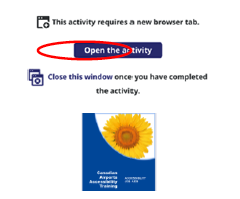
Review the "Accessibility Job Aids" information.
- Open the activity.
Step 8
Exit the “Job Aids” PDF tab to go back to your training page. Training is complete.
- Once job aids information is reviewed and closed, the following screen appears.
Step 9
Download certificate and e-mail to asmith@flyYYG.com.
- Hit the back button in your browser and to get to the welcome screen. Scroll down and hit “Progress – View Transcript”.
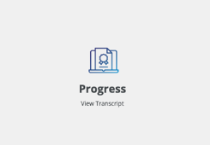
- Select the course certificate that was just completed and hit “Download”, a PDF of your certificate should open in a new tab.
- Save the PDF to your device and send it to asmith@flyYYG.com.